1
Upload the photo
Drop in the shot with the extra person. JPG or PNG up to 12 MB, no account needed.
Brush over the person you want gone, erase the selection, then inspect the rebuilt background.
Brush over the complete person and any shadow that belongs to them.
Four steps. The hard part is the brush, not the buttons.
Drop in the shot with the extra person. JPG or PNG up to 12 MB, no account needed.
Cover the person from head to feet, then their shadow and any reflection. Zoom in for hair and shoe edges.
The pavement, wall or sky behind them is rebuilt from whatever surrounds your brush.
Drag the compare handle across that area, then download at the original resolution.
Remove people from photos free within the daily allowance: 3 edits without an account, or 6 with a free account.
Select one person and their shadow at a time. Plain paving, walls and sky are easier to rebuild than railings or overlapping faces.
A person comes out cleanly when there is ordinary background behind them, and badly when there is structure.
Someone walked into frame as you pressed the shutter. Pavement, grass and a blurred crowd rebuild well.
Your subject is untouched as long as the brush stops at their outline. Zoom in before painting near hair.
Sand, water, sky, lawn and asphalt are the easiest fills — the rebuild only has to continue a texture.
A reflection is ordinary texture to the model. Brush it as a second selection after the person, or it stays behind on its own.
People overlapping each other, or standing against a fence, tiled floor or brickwork — repeating lines rarely meet up again.
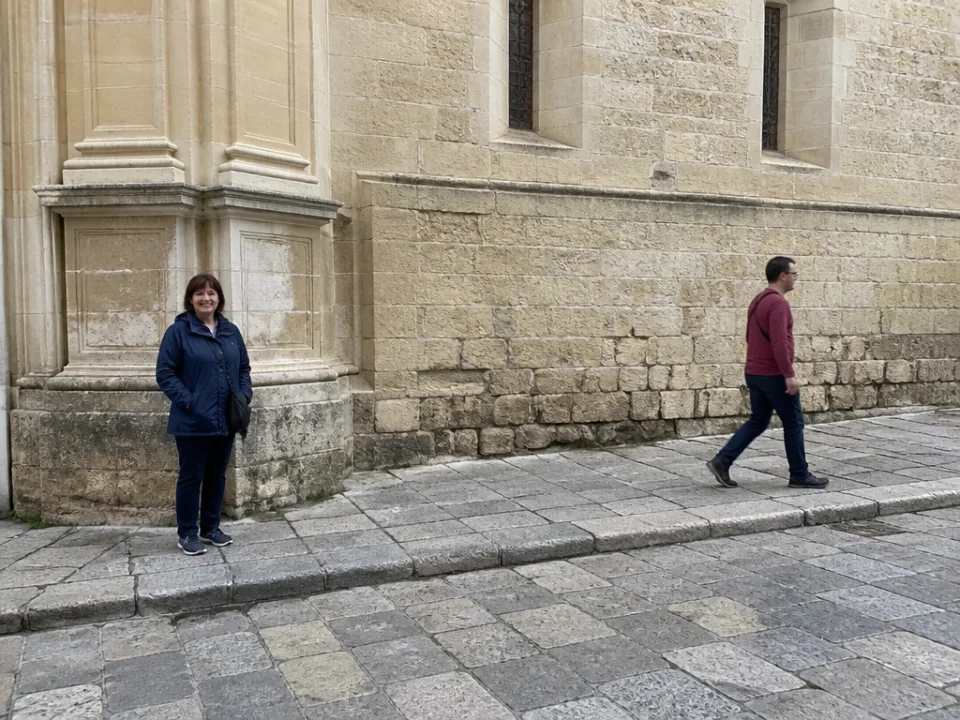
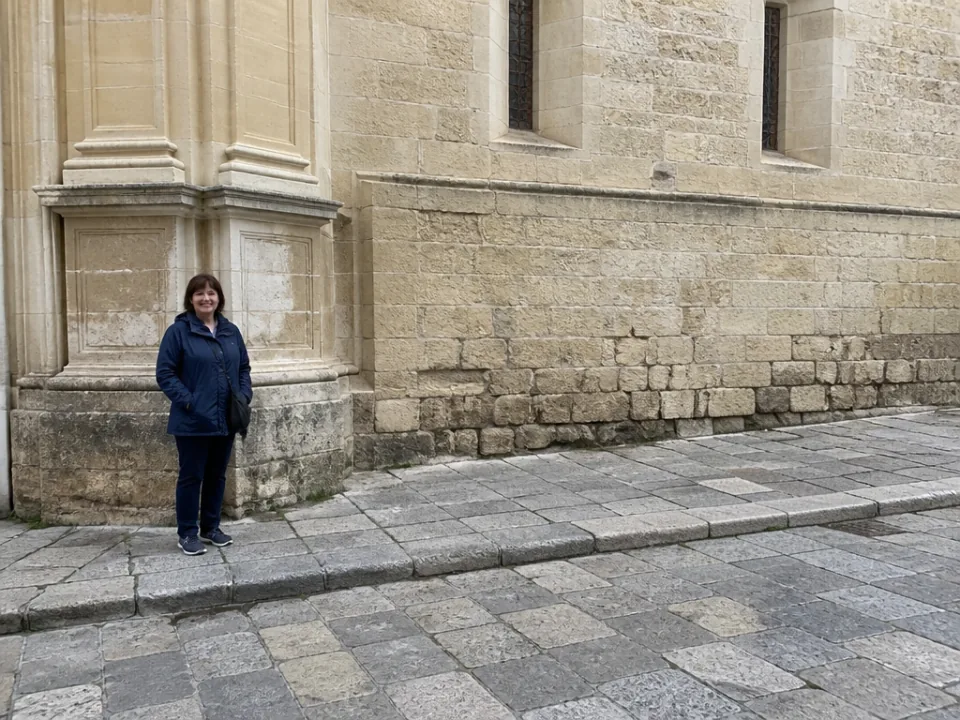
Brushed: the person and their shadow on the pavement. Rebuilt: paving and the wall behind them. Look at: the kerb line where it crosses the patch.
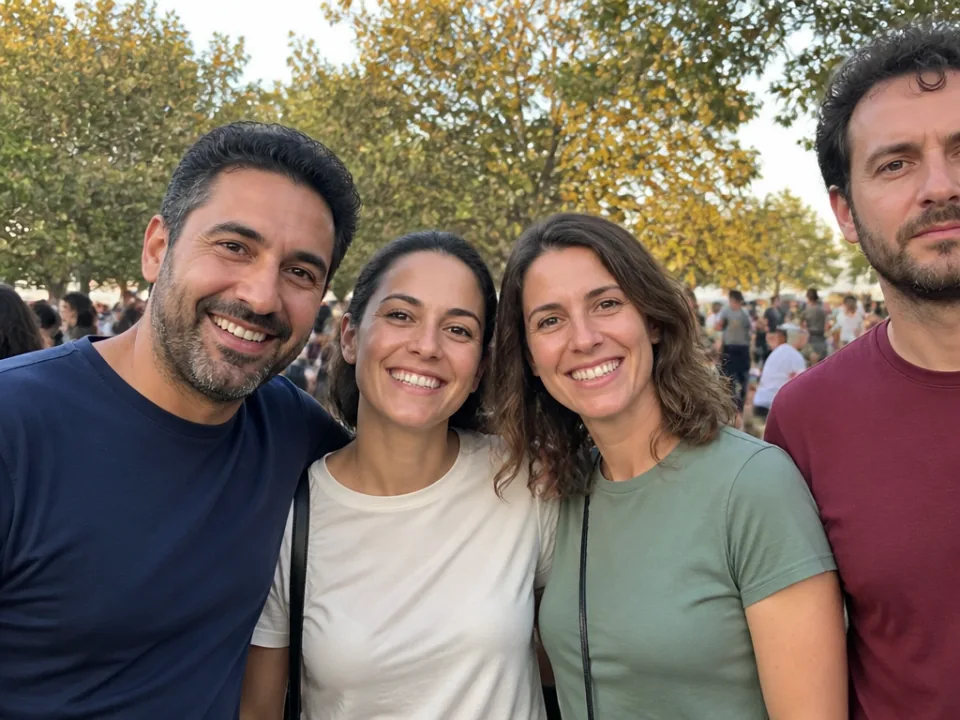
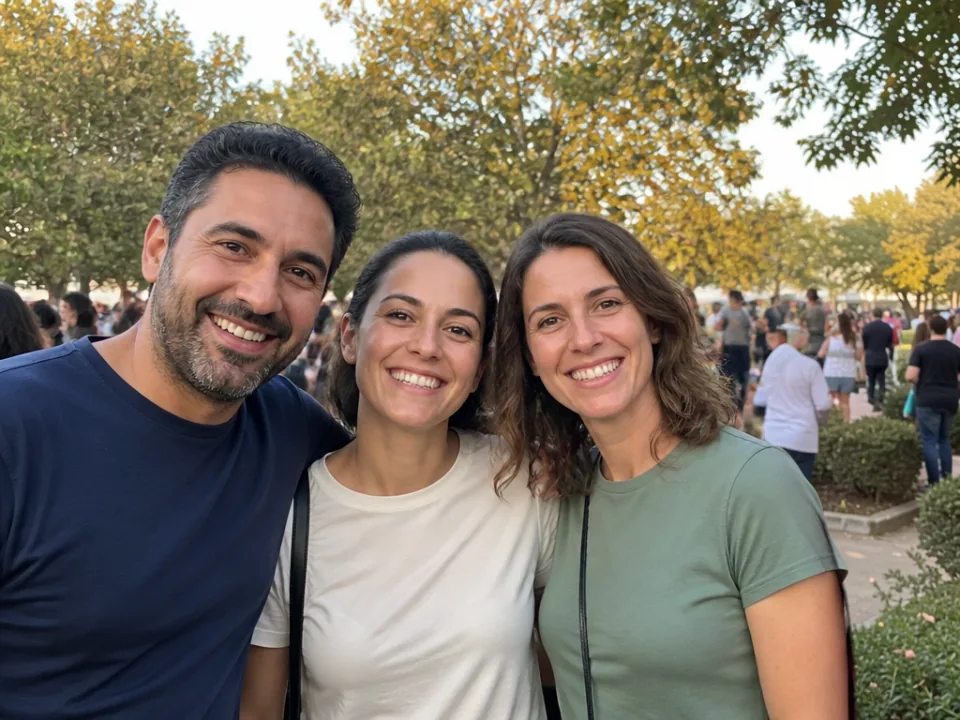
Brushed: the person up to the subject's outline. Rebuilt: the blurred crowd. Look at: the subject's shoulder, untouched.
Daily free edits are shared across all photo tools: 3 without an account, or 6 when signed in.
Watermarks, people, objects and logos — brush over the target and erase it.
Sharpen, upscale and bring old or blurry photos back to life.
Cut the subject out onto a clean transparent or white background.
Only where there is background behind them, not another person you want to keep. Where they overlap your subject, the rebuild has to invent the hidden part of the subject — and it will look invented.
As many as you can brush into one selection. Results are usually better one at a time: erase, look, then run the next.
Only if you paint it. A shadow is just more pixels — brush it with the person or it stays behind as evidence someone was there.
3 edits a day with no account, 6 a day with a free one. No card, no trial, and nothing is added to the file.
No. You get the same pixel dimensions you uploaded, as a full-quality download.
It is your photo to edit. Just don’t pass the result off as an unedited record of what happened, and don’t publish someone else’s photo altered.
Brush only the person you want removed. Keep your subject outside the selection, then inspect their outline and the repaired background.
Brush over a mark on your own photo and erase it.
Marks on images you own or may edit.
Scratches, dust and creases on a scanned print.
Sharpen a blurry photo and upscale it.
A larger, clearer copy of the same shot.
A clean transparent cutout.
Give polished AI images a more natural photo texture. Review the result before saving: details and composition may change.
Brush over unwanted text, then let Erase fill the area from the surrounding photo. Use images you own or have permission to edit.
Remove the background from a photo and download a transparent PNG. Works best when the subject stands out clearly.