AI image humanizer
Give polished AI images a more natural photo texture. Review the result before saving: details and composition may change.
3 free edits per day. Sign in for 6 daily edits across photo tools.
Get 6 free edits daily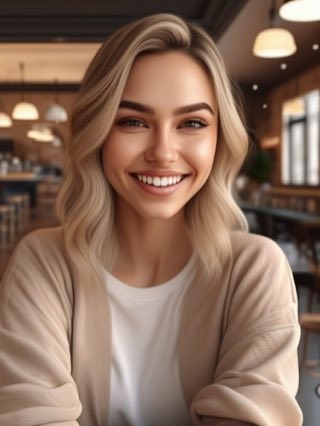 BEFORE
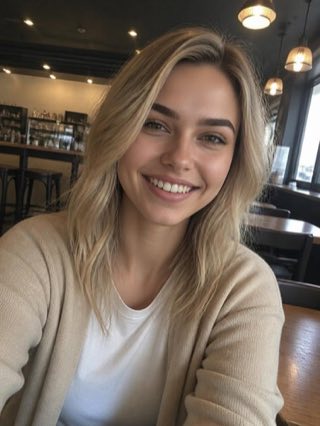 AFTER
AFTERChoose a photo
JPG or PNG · up to 12 MB · no brush or mask
Your result
How to naturalize an AI-looking image
Give polished AI images a more natural photo texture. Review the result before saving: details and composition may change.
- Upload a photo. Choose a JPG or PNG up to 12 MB.
- Run Naturalize. The job changes the image through the Naturalize model.
- Download the result. Inspect the result before saving it.
Facts about this tool
- Input: JPG or PNG, up to 12 MB, one photo per run.
- Output: a newly generated JPEG with a more natural photo texture. Details and composition may change.
- Free: 3 edits a day without an account, 6 a day with a free account. The daily edits are shared across all tools.
- Pro: $2.99 a week, $19.99 a year or $59.99 once. No daily limit.
- Last updated: 2026-10-10
Humanize an AI photo
This tool changes overly polished textures to help make AI images look real. It may also alter faces, objects or composition; compare the result with your source.
FAQ
Does Naturalize preserve every pixel?
This creates a new interpretation of your image. It may change faces, text, objects or composition.
How many free edits do I get?
3 free edits a day without an account, and 6 a day with a free account. The counter next to the upload box always shows what you have left today.
Can I use the AI image humanizer free?
Yes. Try 3 edits a day without an account, or 6 with a free account. The allowance is shared across all tools.
What image sizes can I upload?
Upload one JPG or PNG up to 12 MB.
How do I check the output resolution?
The result shows your original width and height alongside the returned image dimensions. Check those numbers and inspect fine details at your intended display size; a larger image does not guarantee recovery of detail missing from the original.
Photos are sent to the Erase API and its image processor for this edit. Privacy · Terms